Creating PDF Invoices for Paperless Notification
(Only Available as part of the Comprehensive Tax Kiosk Configuration)
It is your responsibility to generate PDFs at the time when tax bills are printed for mailing, as it is not possible to retroactively produce accurate PDF invoices for previously existing invoices. The PDF export functionality should be used only for new invoices going forward. Also, traditional paper invoices will not be generated for parcels on which the taxpayer has opted-in for Paperless Notification.
Before you start the tax bill process, we recommend creating a new folder on your desktop in which you can store the PDF invoices until they have been uploaded to the kiosk. To create a folder, put your mouse on a blank spot on your desktop and right click. Select New | Folder and enter a name for the folder i.e. Kiosk PDF Invoices.
As the PDF invoices need to be created at the time the bills are generated, you should be in the Print Tax Bills process (Utilities | Print Bills) and continue until you get to the final Tax Bill Setup dialog box.
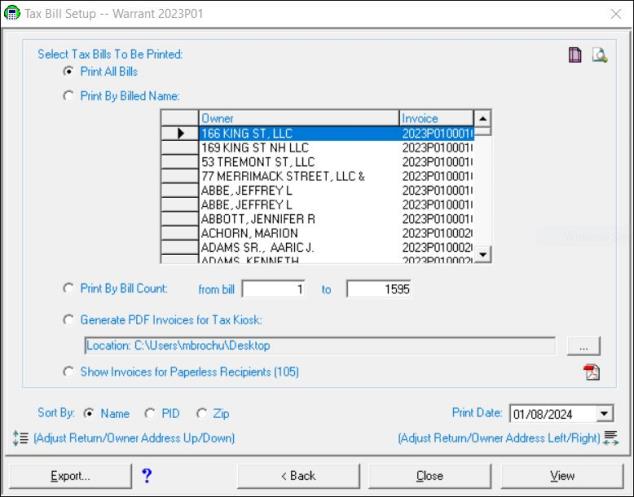
Select the Generate PDF Invoices for Tax Kiosk radio button. The first time you perform this process you will need to tell the system where to store the invoices by selecting the ellipses button and locating the folder you created on your desktop. Once you have the location set select Create. Generating the individual PDFs for each bill can take considerable time, so you will be asked if you want to export a preview set of 50 bills to verify they look correct. Select Yes to preview 50 bills or No to process the PDF for all bills. Once the all the bills have been exported as a PDF to the folder, they are ready to be uploaded to the Tax Kiosk.